First Steps with Haloon
Published on March 9, 2026
Your account is created — great. Now let's make the most of it. This guide walks you through the four essential features you'll use every day on Haloon.
1. Starting Your First Conversation
Open Haloon and click New conversation in the sidebar. You'll land on the chat interface.
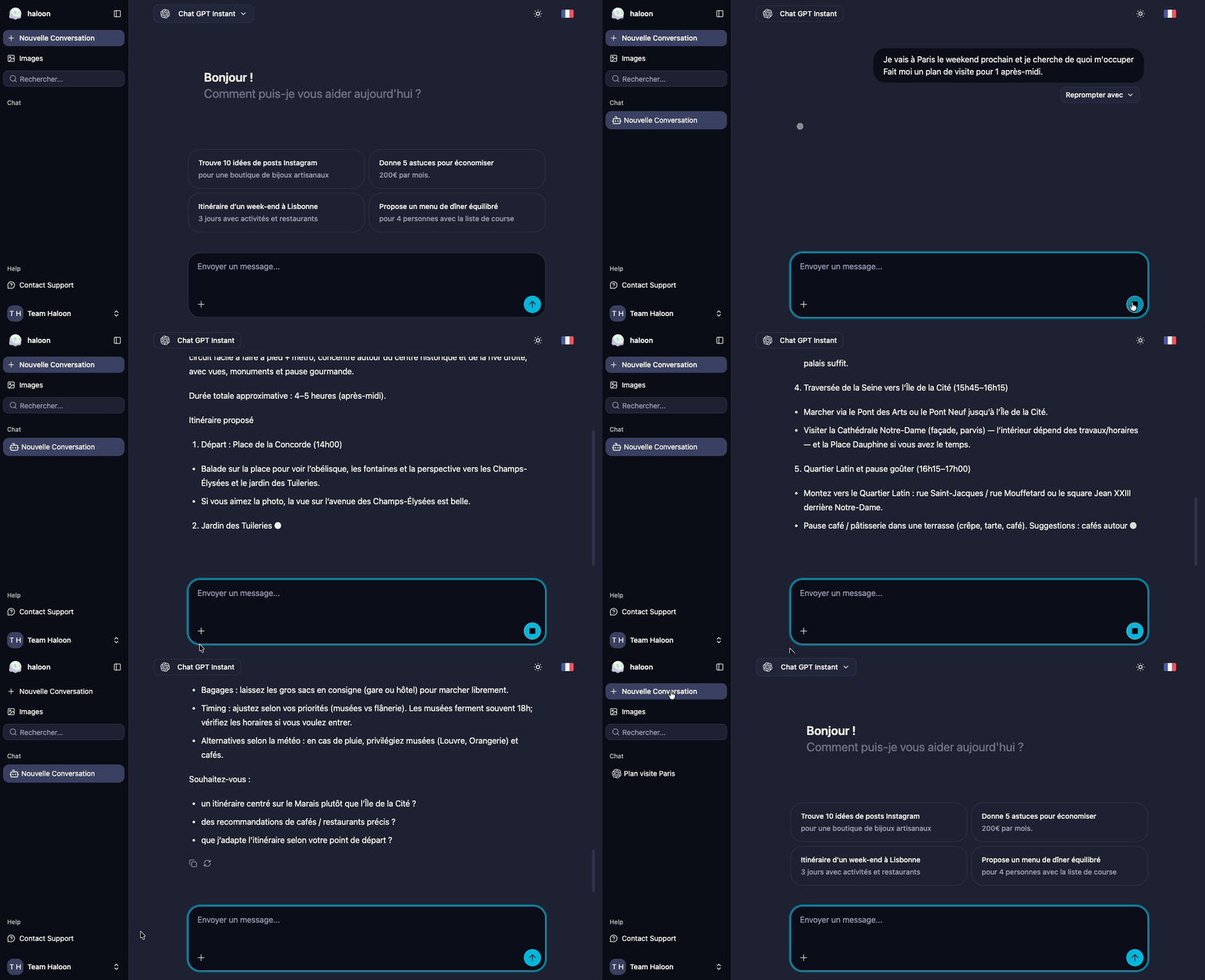
Type your first message in the text field at the bottom and press Enter (or click the send button). The model will start responding right away.
A few things worth knowing from the start:
- Your conversation is saved automatically. You'll find it in the sidebar under your history, and you can search it at any time.
- You can give your conversation a title. Click on the auto-generated name at the top to rename it — useful when you have dozens of conversations open.
- You can continue any past conversation. Just click it in the sidebar to pick up where you left off.
Choosing your model
For each conversation, you can pick the AI model you want to use. Click the model selector at the top of the chat to open the list.
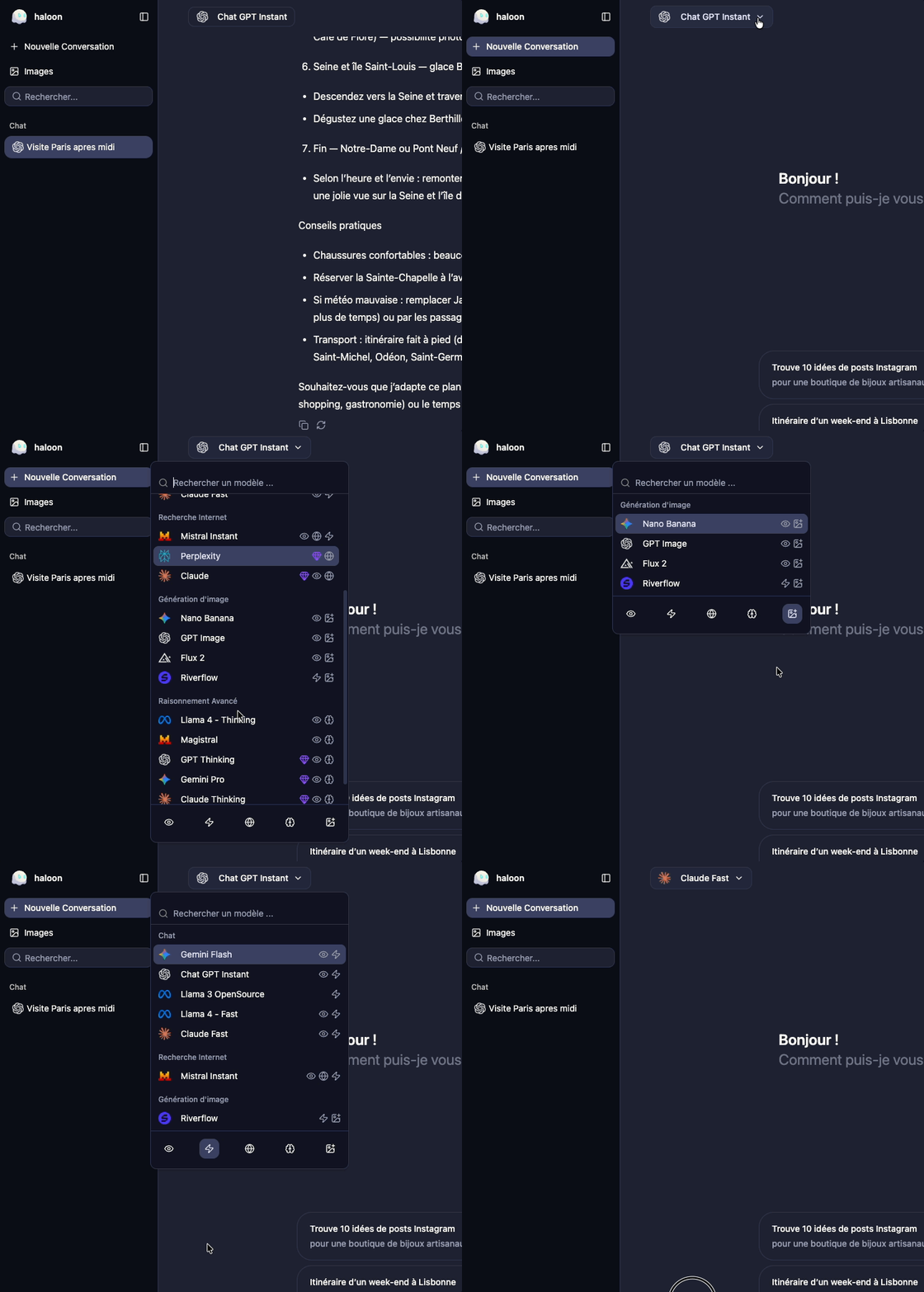
Each model has its own strengths — some are faster, some are more precise, some excel at coding or reasoning. Don't hesitate to experiment.
2. Comparing Models
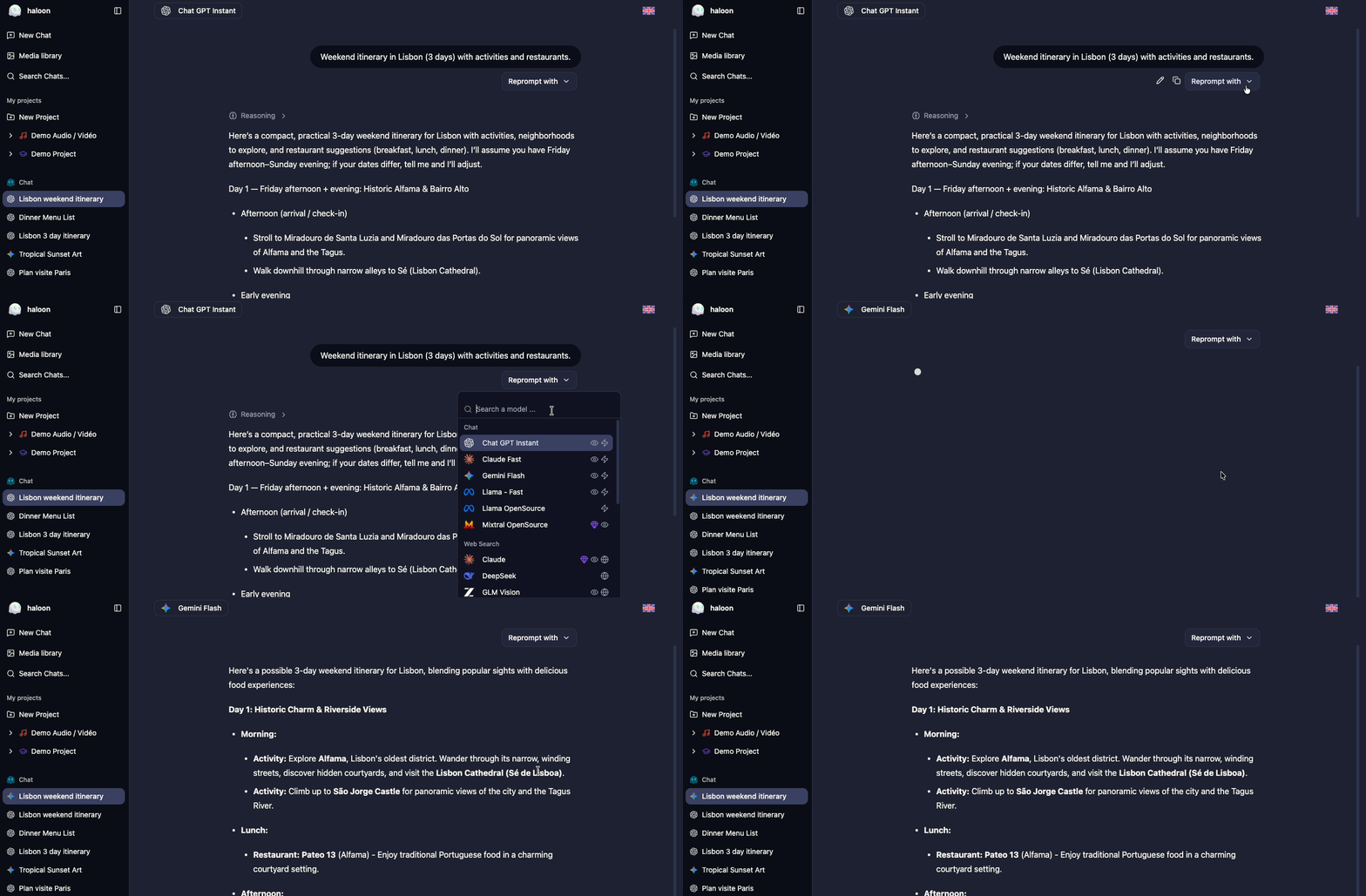
One of Haloon's most powerful features is the reprompt: the ability to submit the same prompt to a different model and compare responses.
Below each of your messages, you can click the Reprompt with button and choose a new model to handle your message. The full conversation history is preserved and passed to the new model.
When to use it
- Choosing the right model for a task — run your actual prompt and judge the output quality directly
- Evaluating factual accuracy — cross-check answers between models to spot discrepancies
- Comparing writing styles — see which model produces the tone or format you prefer
- Testing prompts — iterate on your wording and observe how each model responds differently
3. Generating Images
Haloon gives you access to multiple image generation models from a single interface.
Starting an image generation
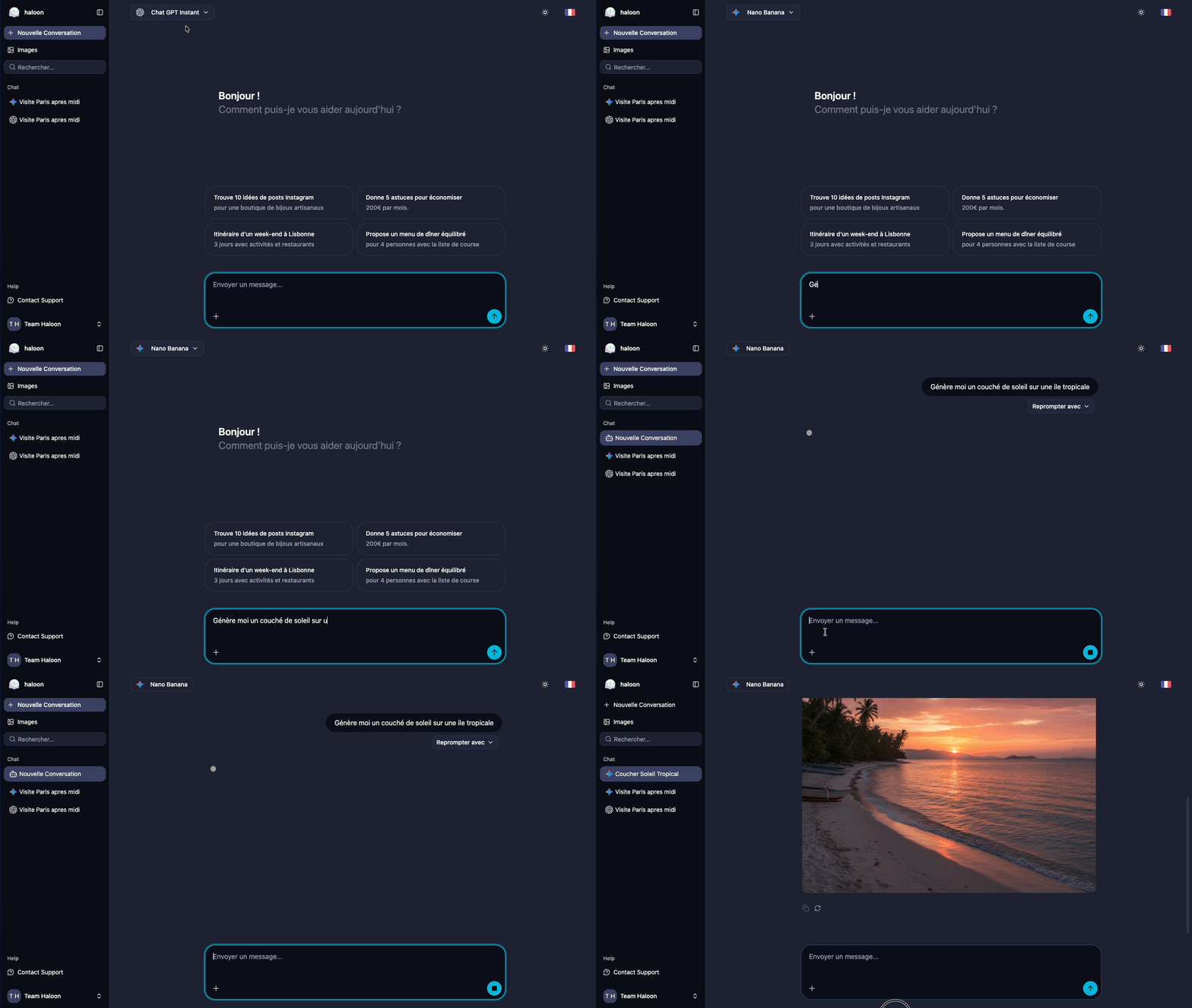
Open a new conversation and choose an image generation model. Describe the image you want to generate — be as specific as possible for better results.
Tips for better results
- Be descriptive — include style, colors, mood, composition and subject
- Specify the format — mention if you need a square, landscape or portrait image
- Iterate — if the result isn't quite right, refine your description and generate again
Accessing your gallery
Every image you generate is saved automatically. To access all your past generations:
- Click Images in the left sidebar
- Browse your images by date or search them
- Click any image to view it full size, download it or use it as a starting point for a new generation
4. Using Web Search
AI models are trained on data up to a certain date — they don't know what happened yesterday. Web search fixes that.
Open a new conversation and choose a model with internet access. These are models with the icon. The model will then automatically decide whether it needs to perform a web search.
What it changes
| Without web search | With web search |
|---|---|
| Knowledge limited to training data | Access to current information |
| May hallucinate recent facts | Answers grounded in real sources |
| No source citations | Sources cited in the response |
Why it matters
Web search is particularly valuable for:
- Current events — news, market prices, sports results, product releases
- Research — getting up-to-date statistics, studies or documentation
- Fact-checking — verifying claims against live sources
- Technical questions — latest library versions, recent changelogs, current best practices
TIP
Want to force a web search? Just ask explicitly in your prompt.
5. Generating Audio
Haloon offers two types of audio generation depending on your need.
Text-to-speech with GPT-Audio
To convert text to speech, select a GPT-Audio model from the list. Paste or type the text you want read aloud and start the generation. The audio file can be downloaded directly from the conversation.
Music generation with Lyria 3
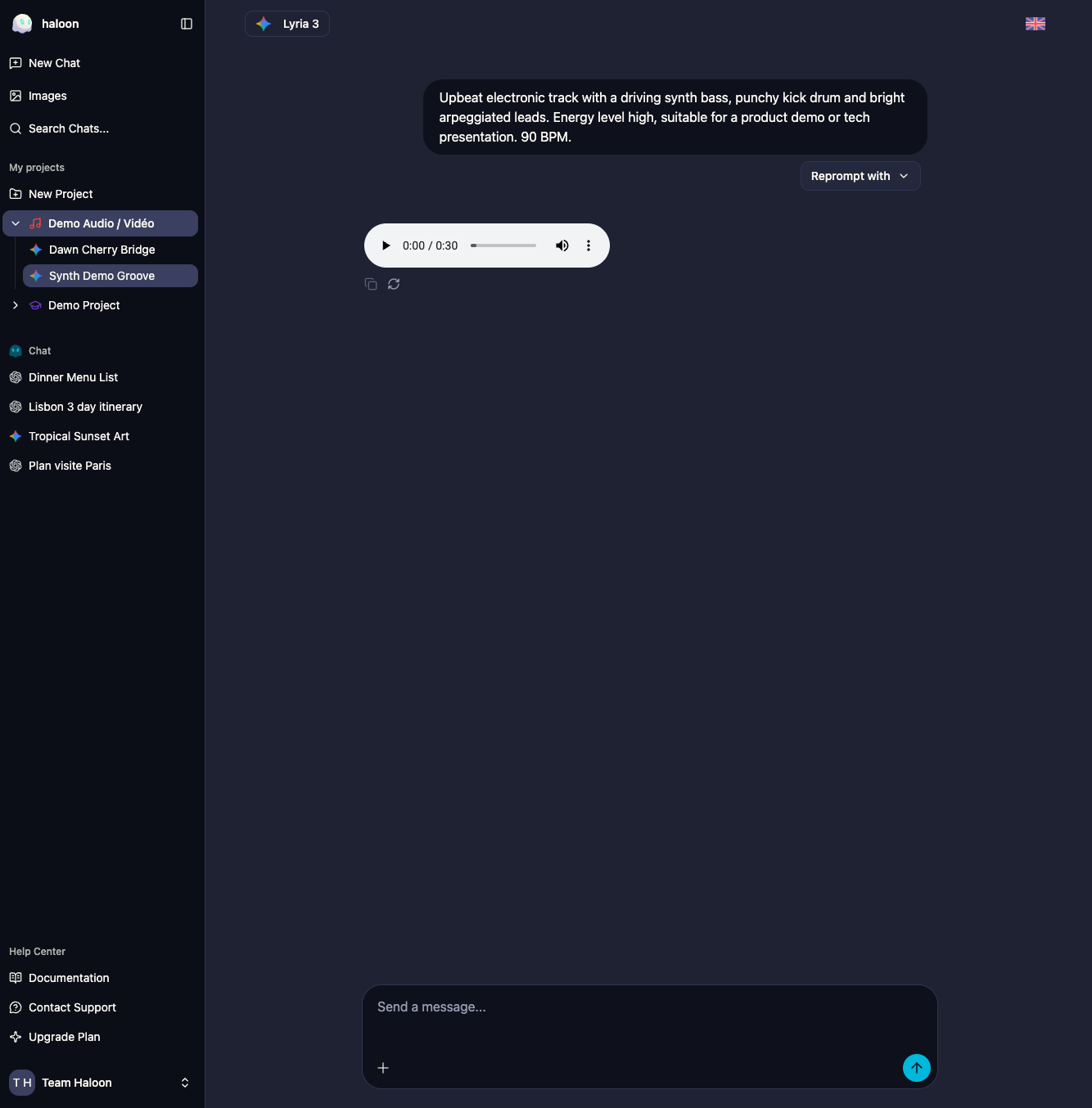
Lyria 3 is a model specialized in music creation. It generates original tracks from a text description of the style, mood and instruments you want.
Example prompt for Lyria 3:
Upbeat electronic track with a driving synth bass, punchy kick drum and bright arpeggiated leads. Energy level high, suitable for a product demo or tech presentation. 90 BPM.
6. Generating a Video
Haloon gives you access to video generation models that can create short clips from a text description.
Starting a video generation
Open a new conversation and choose a video model from the list. Describe the scene you want animated — the more precise you are about movement, mood and duration, the better the result.
Imposing a style with a reference image
You can attach an image to your message to impose a specific visual style or composition. The model will use it as a reference to keep the generated video visually consistent.
Example prompt:
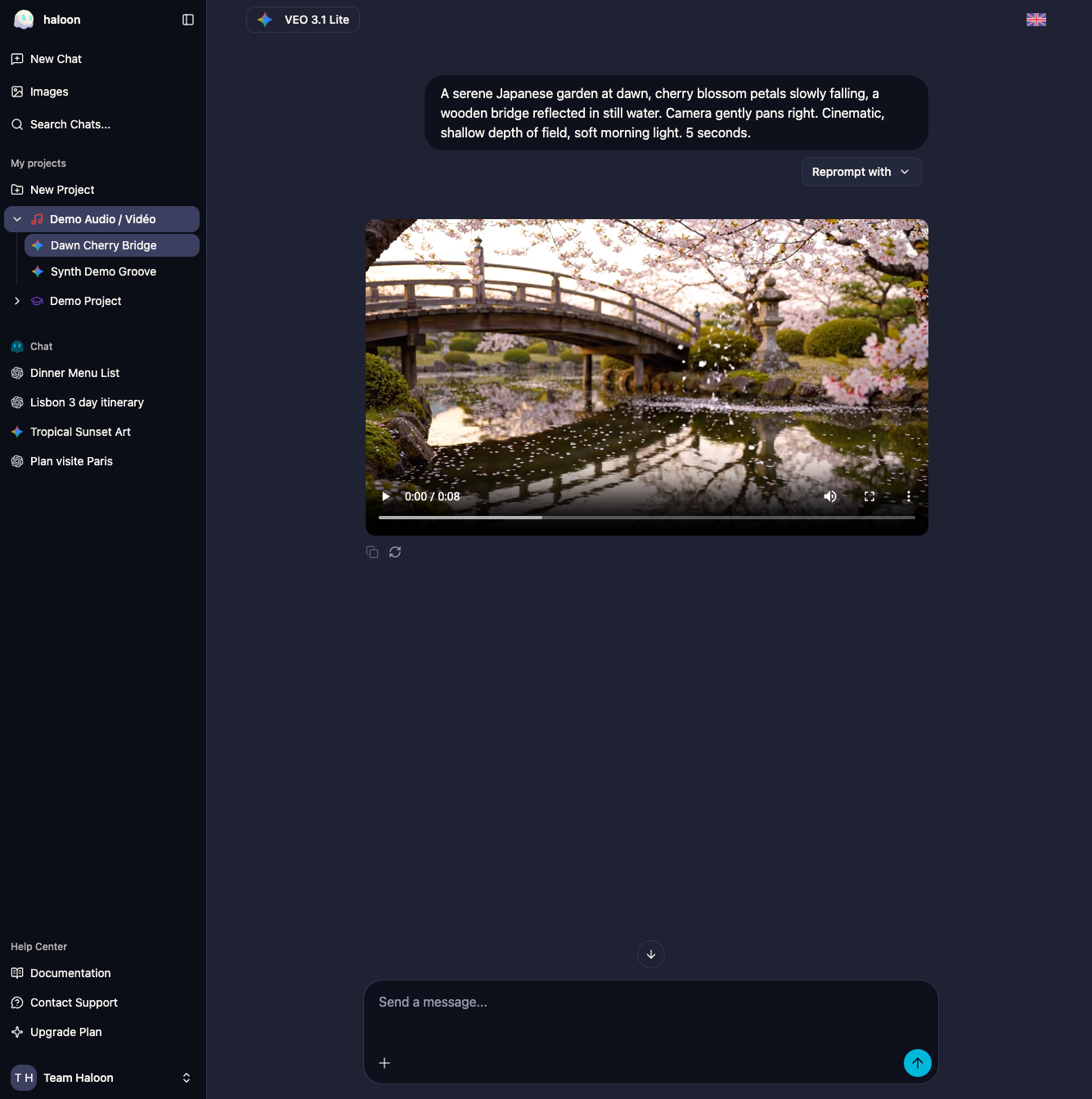
A serene Japanese garden at dawn, cherry blossom petals slowly falling, a wooden bridge reflected in still water. Camera gently pans right. Cinematic, shallow depth of field, soft morning light. 5 seconds.